
In my last post, I explained how to install Apache, php and mysql on windows using Appserv. Now I’ll explain how to install wordpress.
Download WordPress
First, download the zip from wordpress Download page. http://www.wordpress.org/download/

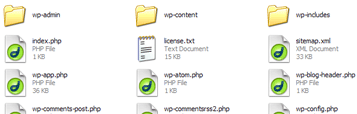
Then create a folder and named it wordpress or weblog whatever under c:\appserv\www. Unzip the file which you download from wordpress site, into that folder. WordPress folder contains wp-admin, wp-content, wp-includes and many other php files.
Creating database for wordpress
Type the address http://localhost/phpmyadmin/ in browser. You’ll see phpMyAdmin database administration panel.
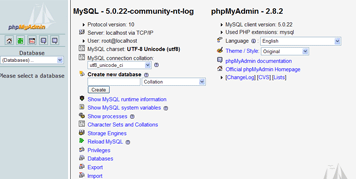
Create a database name “wordpress” or whatever. This database will be used in WordPress installation.

Installing WordPress
Now it’s time to install wordpress, type http://localhost/wordpress in your browser.
You’ll see wordpress installation page. Click ‘create a wp-config.php file through a web interface‘.
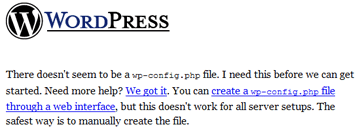
Click Let’s go
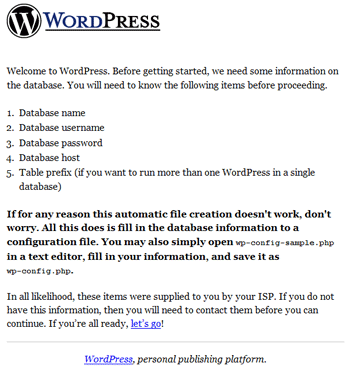
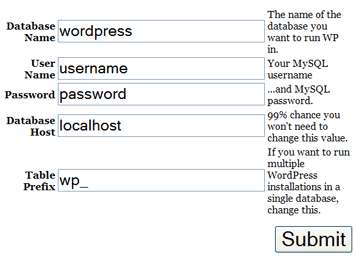
Click ‘Submit‘.
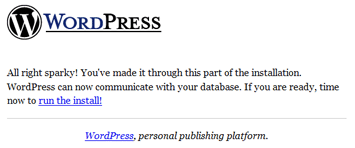
Click ‘run the install‘
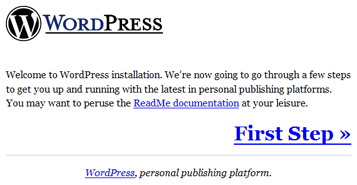
Click ‘First Step‘
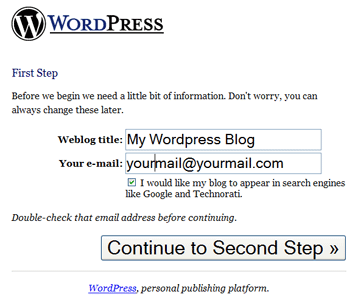
Click Continue to Second Step
Installation finished
This is a final state of wordpress installation. WordPress installation will give you a username and it’ password. Mark it down!!!
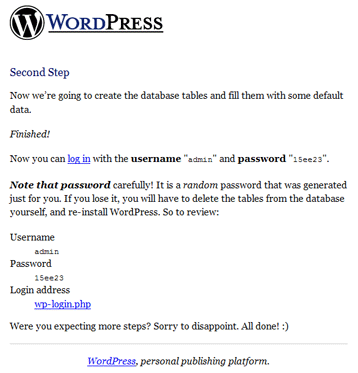
Now, you can login to your very first wordpress blog. Click wp-login.php. Next time, use this address. http://localhost/[wordpress folder]/wp-login.php
Comments
8 responses to “Installing WordPress on Windows”
Informative post there. Will be helpful. I use a local XAMPP server setup :D
Thank for your big comments here. I also hope that this post will help to every blogger who start to taste WordPress blogging platform. I’ll write both about using wordpress and its useful plugins and other technical coding stuff soon.
Nice! I haven’t have chance to install wordpress at my local host. May be I should do it so I can trace my problem about the linebreak at my comment section! :)
[…] story here No Comments so far Leave a comment RSS feed for comments on this post. TrackBack URI […]
but after installing this, still my IIS webserver works?
or can we setup different PORT number for Apache and IIS on the same server?
Thank you in advance for the reply.
regards
Minesh
Thanks. I’ve installed WordPress in few sites and it seems that few parameters are missing. How can you emphasize just few word and not all the paragraph. Those features are the basic…!!
Thanks anyway.
Melanie
Hi! My younger brother,
First, download AppServ and install it. It’s ok and download wordpress 2.5.10 and follow your instructions. When type http://localhost/phpmyadmin/ in my browser, this error message appear “Not Found : HTTP Error 404. The requested resource is not found.”. As you know I am a new beginner. Please guide me. By the way, I’m Myanmar. My name is Nyi Nyi Aung. I’m looking forward your reply.
Thanks.
So sorry to disturb my brother. Still having problem. Type http://localhost/phpmyadmin/ and “authentication required” page appear and request user name and password. I don’t know which user name and password to type. Please help me and don’t forget that I’m a new beginner. Thanks for your kindly reply.
Looking forward your next reply.
With regards,
Nyi Nyi Aung