
Installing Apache Web Server, php and MySQL individually on Windows is not easy task. Because it might takes long time time to make so many configurations to work well such as editing in .ini setting, httpd.conf and many services and extensions used by Apache, php and MySql.
Appserv

Appserv includes Apache, php, MySQL and phpMyAdmin in one package and you can install in a minute without make any configuration.
Let’s get started.
- Check the version history from Appserv.
- download the latest stable released Appserv windows installer version from SourceForget.net.
Installing Appserv
Run the Appserv setup (.exe) file which you downloaded.
Before you install Appserv package make sure that you stop IIS if you has installed IIS in your machine because only one web server can run in single machine.
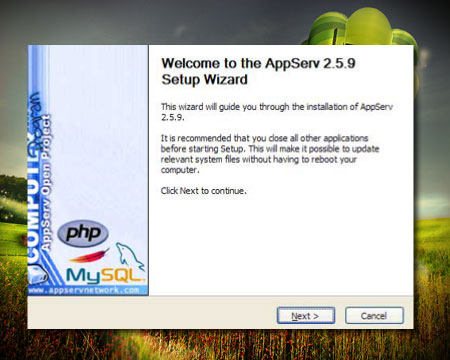
- You’ll see Welcome Message, click ‘Next’.
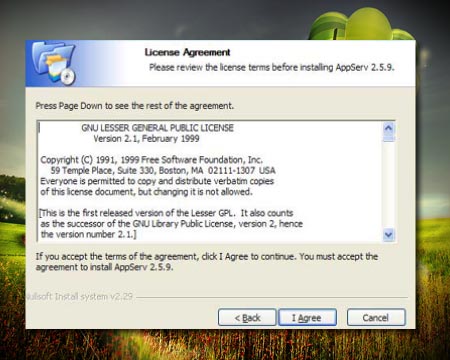
- You’ll see License Agreement, click ‘Next’
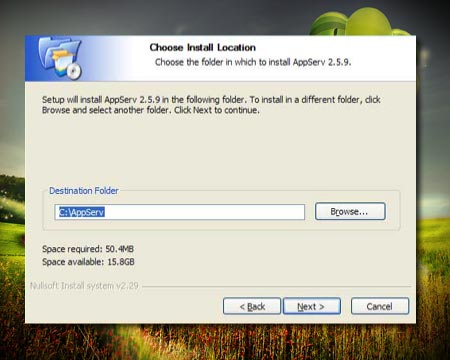
- Choose the installation directory, c:\appserv as default. Click “Next”.
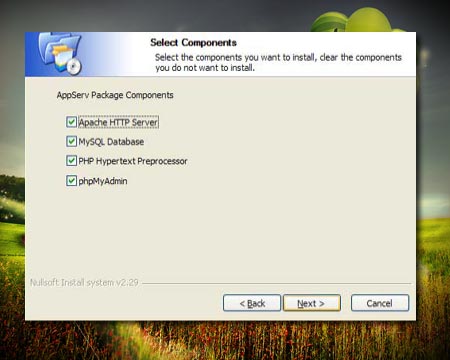
- Select the applications you wish to install, all of four services checked as default. Click ‘Next’.
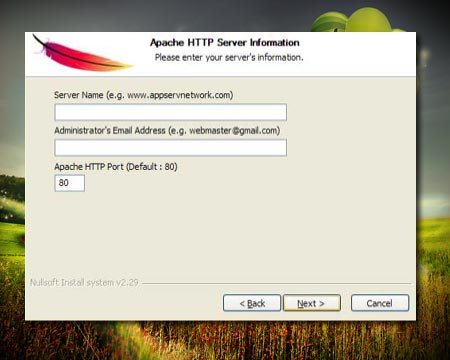
- Enter the Apache web server information. Normally, you can put whatever you want. In Web Server Name, you can put “www.example.com” or something like this. Administrator’s Email Address, put your email address or “[email protected]”.
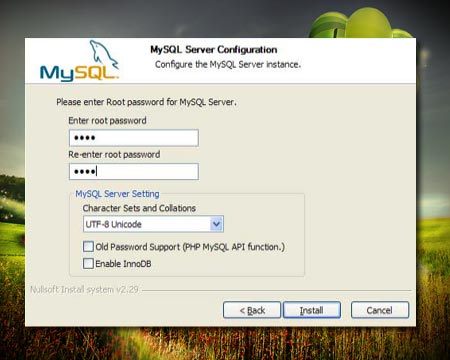
- Enter password for Mysql root user, enter a password which is easier to remember when you login to mysql database as root.
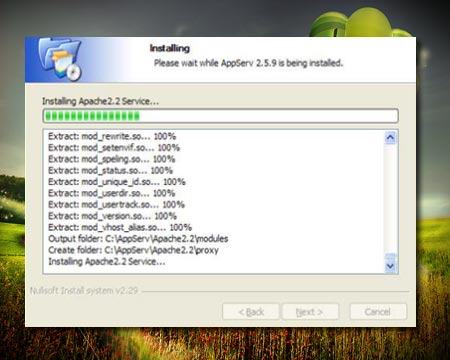
- You’ll see installation progress.
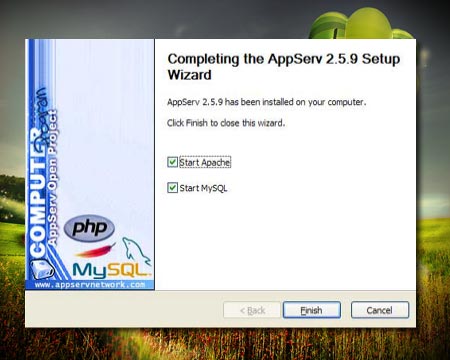
- Start Apache web server and Mysql service. Click “Finished”.
Remember that I’m using Appserv 2.5.9 in this post.
Using another package called XAMPP
Michael Sync covered the post about installation Apache server, php, mysql and phpMyAdmin using XAMPP package. He aslo explained how to install wordpress in that post.
Comments
14 responses to “Installing Appserv on Windows”
[…] my last post, I explained how to install Apache, php and mysql on windows using Appserv. Now I’ll explain […]
Just one Q – how do I turn off IIS?
I haven’t installed/activated IIS, but is it there by default? If so, how to turn it off.
How can I install an smtp on appserv. I want to use the registration in wordpress but i think I need to install an SMTP onto appserv. Or maybe I’m doing it all wrong. I installed WP User Control plugin but the registration does not work.
You can turn off IIS in the Services of Microsoft Windows. Or you can change the port no. for Apache.
As u know, the default port no. for web server is 80 and ssl is 443. You need to change the port no. in the config file of Apache to run IIS and Apache in parallel.
Handy tool! I’ve been using WAMP to run my setup at home. Might give this a try
[…] Нужно поставить AppServ 2.5.10. 2. Затем качаем wordpress 3. Кладем содержимое […]
I have installed Appserv then I insalled IIS too, then i deinstalled IIS but now appserv dont work, I changed port to 8080 but it dont work , can u help?
Although I close port 80 in IIS, not ok with XAMPP. At this time, your post is very usefull for me.
Now I can run my PHP with this installation of appserv.
Thanks a lot, bro :-)
Entering a password for Mysql root user, then enter a password which is easier to remember when you login to mysql database as root is a very good idea.
That’s where I had my problem I forgot to turn off IIS worked ok now thanks
the browser demand a user name and password
Root not work as a user name
I have installed XAMPP then I insalled IIS too, then i deinstalled IIS but now appserv dont work, I changed port to 8088
easy, fast and perfectly explained. Good work!
please delete this (double post, sorry)